

Advanced SQL Injections
Introduction to PostgreSQL
Introduction
In this module we will be exploring a few advanced SQL injection techniques as well as some PostgreSQL-specific attacks from a white-box approach. As this is an advanced module, an understanding of SQL syntax, SQL injections and Python3 is expected to fully grasp the concepts explained. Although this module will focus on PostgreSQL, the same techniques can be adapted to work with other SQL variants, as it is a standardized language.
Interacting with PostgreSQL
Before we get into injection vulnerablities, let's take a moment to familiarize ourselves with two of the most common tools for interacting with PostgreSQL databases: psql and pgAdmin4.
psql (PostgreSQL Interactive Terminal)
psql is a command-line tool for interacting with PostgreSQL databases that comes pre-packaged with the PostgreSQL server and works on Linux or Windows.
You can install psql on a Linux distribution with this single command:
[!bash!]$ sudo apt install postgresql-client-15
Note: It's possible that the distribution of Linux you are running does not have version 15. In that case, you can install version 13 and everything will work fine with minimally adapted steps.
To install psql on Windows, you should first download the PostgreSQL installer from postgresql.org and then during the installation process unselect everything except for Command Line Tools.
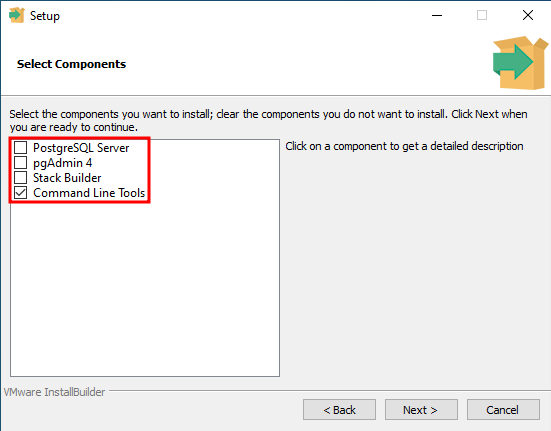
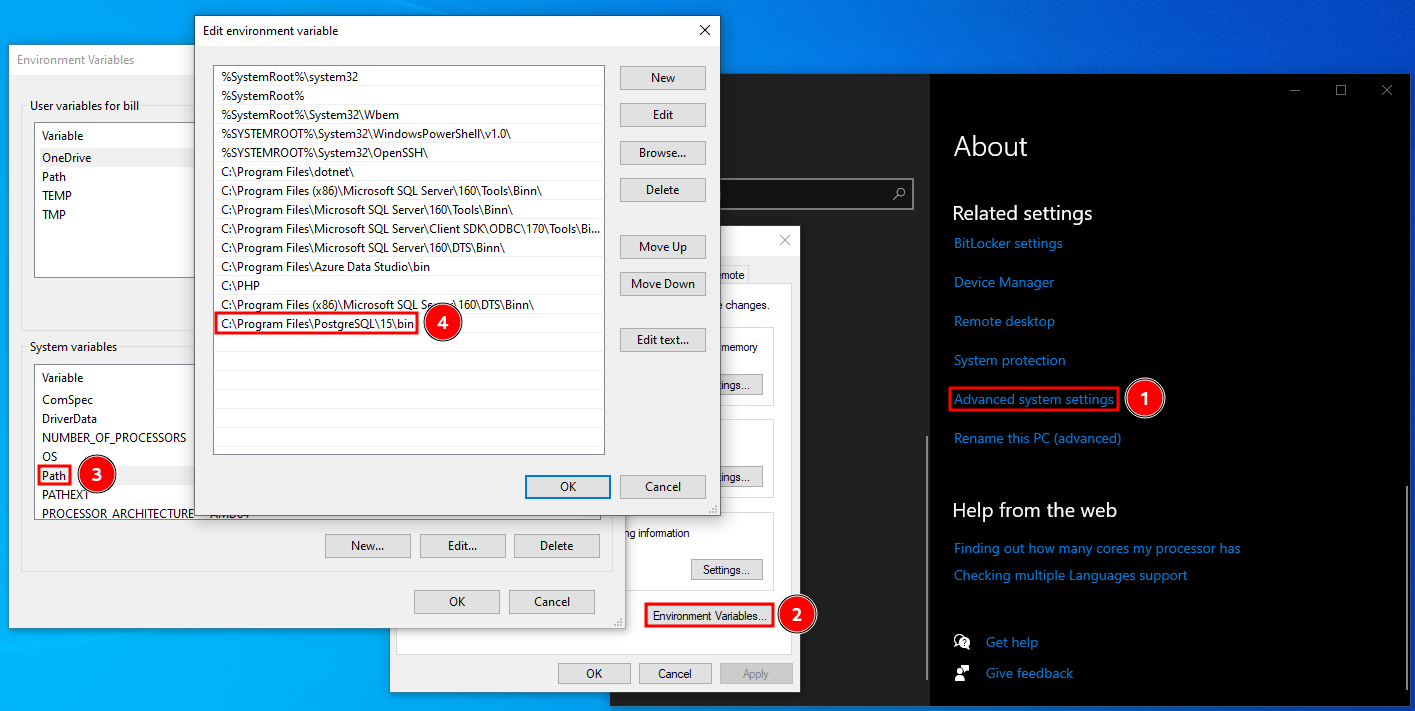
Once it's done installing, you may use psql.exe from the installation directory (C:\Program Files\PostgreSQL\15\bin by default) or you can add the directory to the system PATH variable to be able to use it from anywhere:
Once you've installed psql on your operating system of choice, you can connect to a PostgreSQL database with the following command:
[!bash!]$ psql -h 127.0.0.1 [-p PORT] -U acdbuser acmecorp
Password for user acdbuser:
psql (15.1 (Debian 15.1-1+b1), server 13.9 (Debian 13.9-0+deb11u1))
SSL connection (protocol: TLSv1.3, cipher: TLS_AES_256_GCM_SHA384, compression: off)
Type "help" for help.

acmecorp=>
Once connected, you can list databases with the \l command or \l+ for extended details.
acmecorp=> \l
                                             List of databases
   Name    |  Owner   | Encoding | Collate |  Ctype  | ICU Locale | Locale Provider |   Access privileges
-----------+----------+----------+---------+---------+------------+-----------------+-----------------------
 acmecorp  | postgres | UTF8     | C.UTF-8 | C.UTF-8 |            | libc            |
 postgres  | postgres | UTF8     | C.UTF-8 | C.UTF-8 |            | libc            |
 template0 | postgres | UTF8     | C.UTF-8 | C.UTF-8 |            | libc            | =c/postgres          +
           |          |          |         |         |            |                 | postgres=CTc/postgres
 template1 | postgres | UTF8     | C.UTF-8 | C.UTF-8 |            | libc            | =c/postgres          +
           |          |          |         |         |            |                 | postgres=CTc/postgres
(4 rows)
To switch to a database you can use the \c <DATABASE> command. In this case we are already in the acmecorp database.
To list the tables in a database (after you've switched to it), you can use the \dt command or \dt+ for extended information.
acmecorp=> \dt+
                                        List of relations
 Schema |    Name     | Type  |  Owner   | Persistence | Access method |    Size    | Description
--------+-------------+-------+----------+-------------+---------------+------------+-------------
 public | departments | table | postgres | permanent   | heap          | 8192 bytes |
 public | dept_emp    | table | postgres | permanent   | heap          | 72 kB      |
 public | employees   | table | postgres | permanent   | heap          | 176 kB     |
 public | salaries    | table | postgres | permanent   | heap          | 72 kB      |
 public | titles      | table | postgres | permanent   | heap          | 80 kB      |
(5 rows)
Last, but not least, you can query the database simply by entering the query and making sure it's terminated with a semicolon. Multi-line queries work as well.
acmecorp=> SELECT first_name, last_name, email FROM employees LIMIT 5;
 first_name |  last_name  |           email
------------+-------------+---------------------------
 Kathleen   | Flint       | [email protected]
 Henry      | Watson      | [email protected]
 Ruth       | Perez       | [email protected]
 Leon       | Tappin      | [email protected]
 Donita     | Fairweather | [email protected]
(5 rows)
pgAdmin4
pgAdmin4 is a GUI application for interacting with PostgreSQL databases that works on Linux and Windows.
To install pgAdmin4 on Linux, run the following commands:
[!bash!]$ curl -fsS https://www.pgadmin.org/static/packages_pgadmin_org.pub | sudo gpg --dearmor -o /usr/share/keyrings/packages-pgadmin-org.gpg
[!bash!]$ sudo sh -c 'echo "deb [signed-by=/usr/share/keyrings/packages-pgadmin-org.gpg] https://ftp.postgresql.org/pub/pgadmin/pgadmin4/apt/$(lsb_release -cs) pgadmin4 main" > /etc/apt/sources.list.d/pgadmin4.list && apt update'
[!bash!]$ sudo apt install pgadmin4
Note: If you are using Kali or ParrotOS (like the Pwnbox), you will want to replace $(lsb_release -cs) in the second command with bullseye, otherwise the installation will fail.
To install pgAdmin4 on Windows you can download the installer from pgadmin.org and follow the installation steps, or you can reuse the installer we used to install psql.exe, just make sure the pgAdmin4 option is checked this time in the installation process.
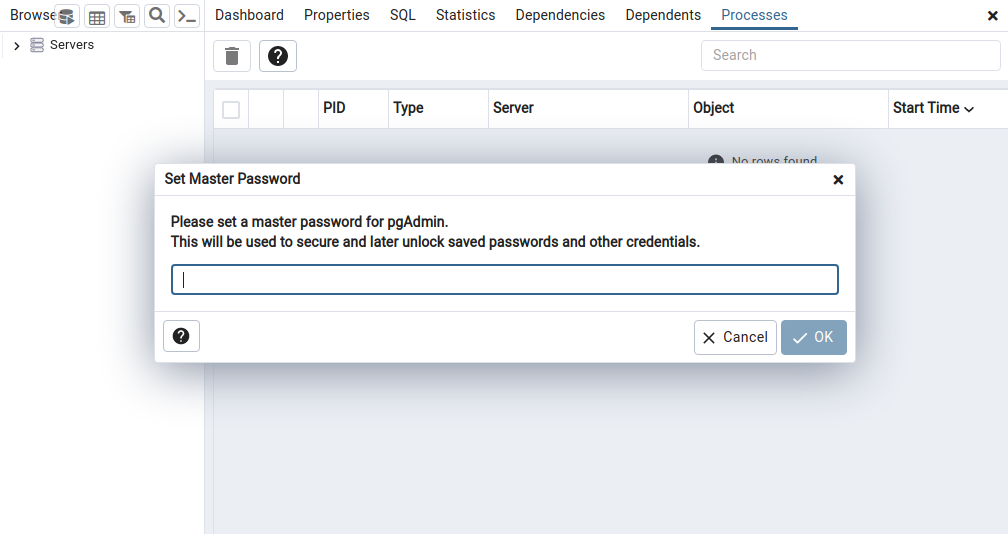
The first time you launch pgAdmin4 you will have to set a master password. This is simply to protect the credentials you will later use to connect to databases.
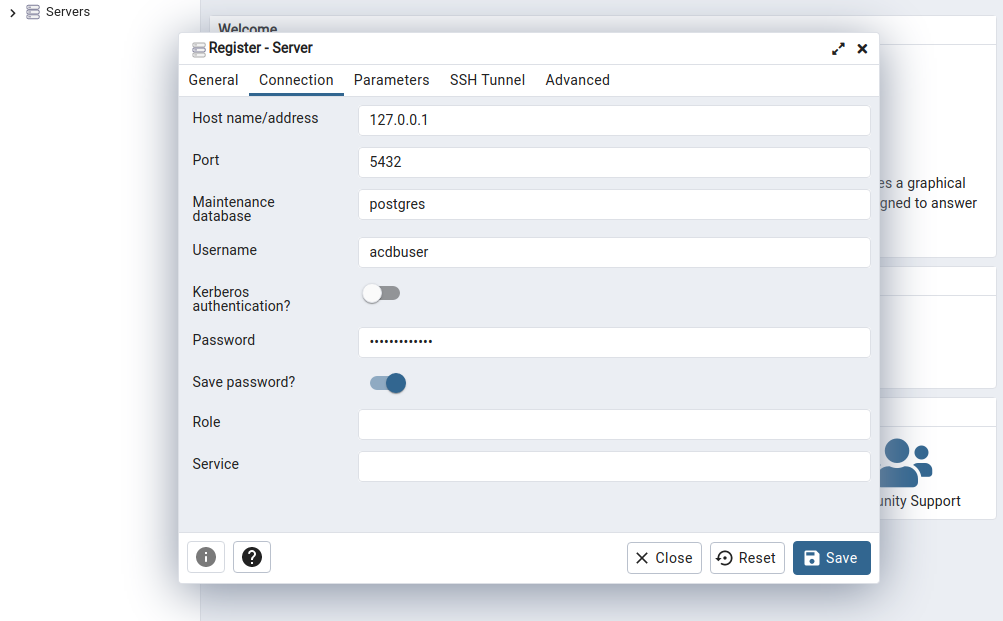
To connect to a PostgreSQL server, go to Dashboard > Add New Server, fill out the details and press Save.
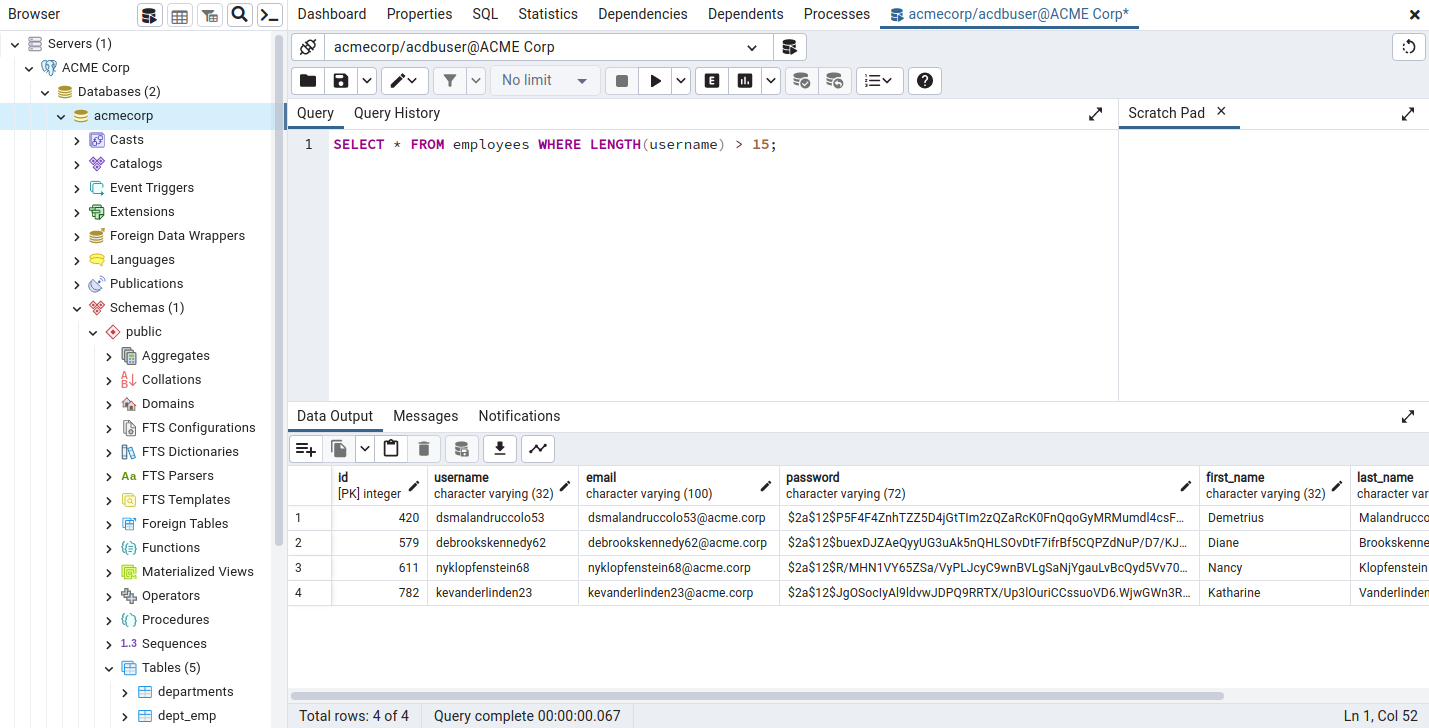
Once you've done that, you can access the server on the left-hand side under whatever name you chose. Viewing databases and tables is very intuitive with this graphic interface, and running queries is as simple as right-clicking on a database and selecting the Query Tool.
Practice
To finish off this section install psql or pgAdmin4, spawn and connect to the target database (acmecorp) with the credentials acdbuser:AcmeCorp2023!, and then answer the questions below.
/ 1 spawns left
Questions
Answer the question(s) below to complete this Section and earn cubes!
Click here to spawn the target system!
Target:
Click here to spawn the target system!
Authenticate to with user "acdbuser" and password "AcmeCorp2023!"
+10 Streak pts
Authenticate to with user "acdbuser" and password "AcmeCorp2023!"
+10 Streak pts
Authenticate to with user "acdbuser" and password "AcmeCorp2023!"
+10 Streak pts
Authenticate to with user "acdbuser" and password "AcmeCorp2023!"
+10 Streak pts
Table of Contents
Introduction
Introduction to PostgreSQLIdentifying Vulnerabilities
Decompiling Java Archives Searching for Strings Live-debugging Java Applications Hunting for SQL ErrorsAdvanced SQL Injection Techniques
Common Character Bypasses Error-Based SQL Injection Second-Order SQL InjectionPostgreSQL-Specific Techniques
Reading and Writing Files Command ExecutionDefending Against SQL Injection
Preventing SQL Injection VulnerabilitiesSkills Assessment
Skills AssessmentMy Workstation
OFFLINE
/ 1 spawns left


